






If you have an aging Android phone collecting dust, there are plenty of ways to give it a second life.
Android’s flexibility makes it easy to repurpose an old device instead of trading it in or passing it on to another family member. And one less common use is turning it into a smart display.
While phones don’t offer the same expansive screen real estate as tablets, a few tweaks and a roughly $50 accessory can bridge that gap.
After experimenting with my Samsung and Google Android devices, I found that they can serve as surprisingly effective alternatives to dedicated smart displays like the Pixel Tablet or Amazon Echo Show.
Desktop Mode unlocks my phone into a smart home display
DeX has more useful controls and features
Last month, I bought a portable monitor to use as an on-the-go workstation alongside my Galaxy Z Flip 7 and Pixel 9 Pro XL as a laptop alternative.
However, I quickly discovered another use for it: transforming it into a smart display for the living room, kitchen, or bedroom.
The key requirement is an Android phone that supports Samsung DeX or Android Desktop Mode. This lets you connect your phone to a portable monitor, spare display, or TV.
Samsung devices have an additional advantage because they can function as a touchpad, eliminating the need for a separate mouse.
A touchscreen-enabled portable monitor is even better. Although they typically cost more than $100, they can operate without a dedicated mouse or keyboard connected to your phone.
Affordable devices that support DeX or Desktop Mode
Samsung phones are some of the cheapest with DisplayPort
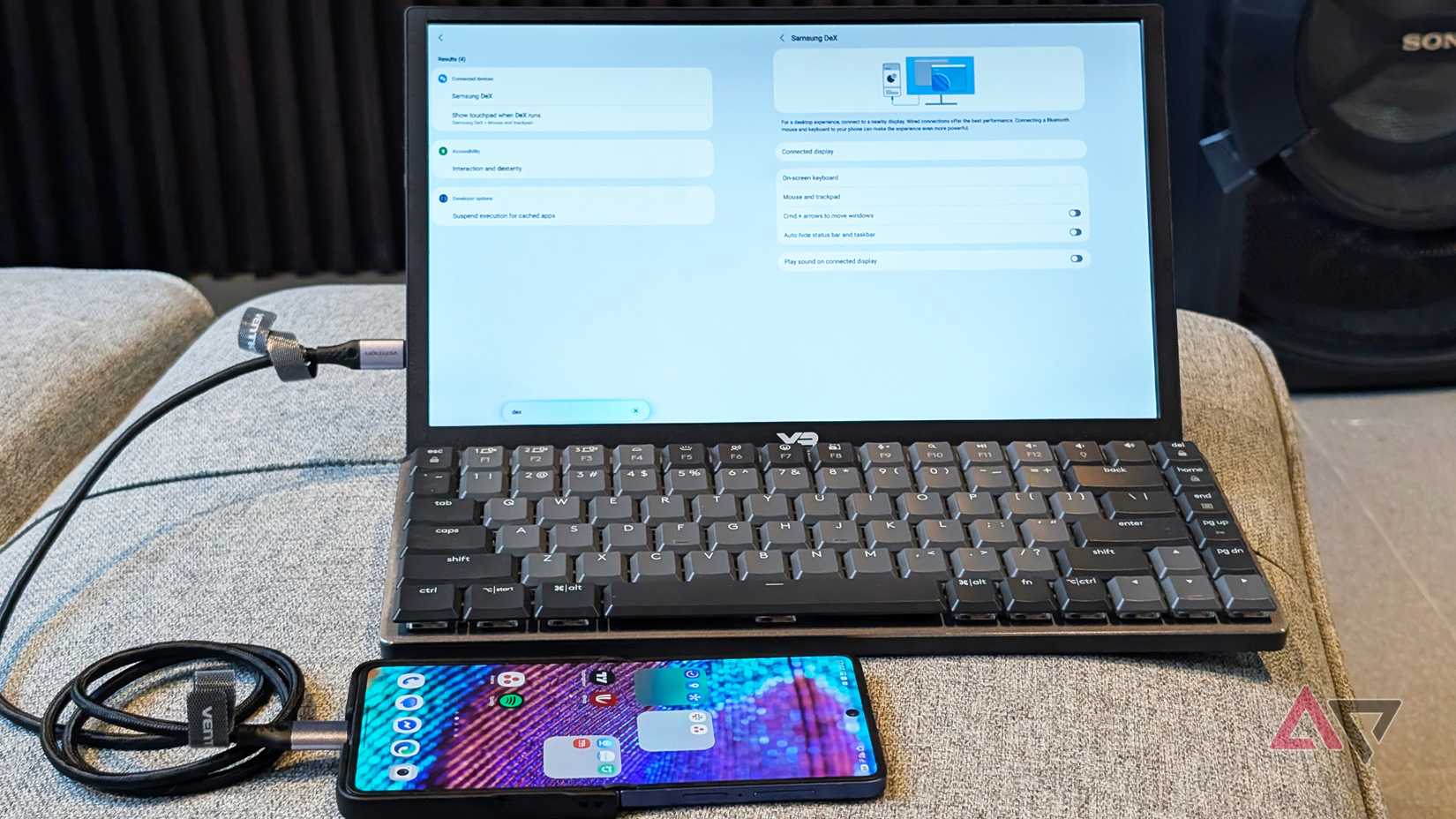
Whereas before, very few phones supported video output, the number of compatible models has grown.
The good thing is, you can get most of them for cheap, without paying several hundred dollars. For example, you can buy the Galaxy S21 FE as one of the cheapest Samsung phones with DeX.
Alternatively, there’s the Galaxy S20 Ultra. I’ve checked the market, and most used units are priced at about $100.
It also works with any device running Android 16 or Android 17 that supports DisplayPort Alt mode, including the Pixel 8, Pixel 9, Pixel 10, and newer Pixel 11 models.
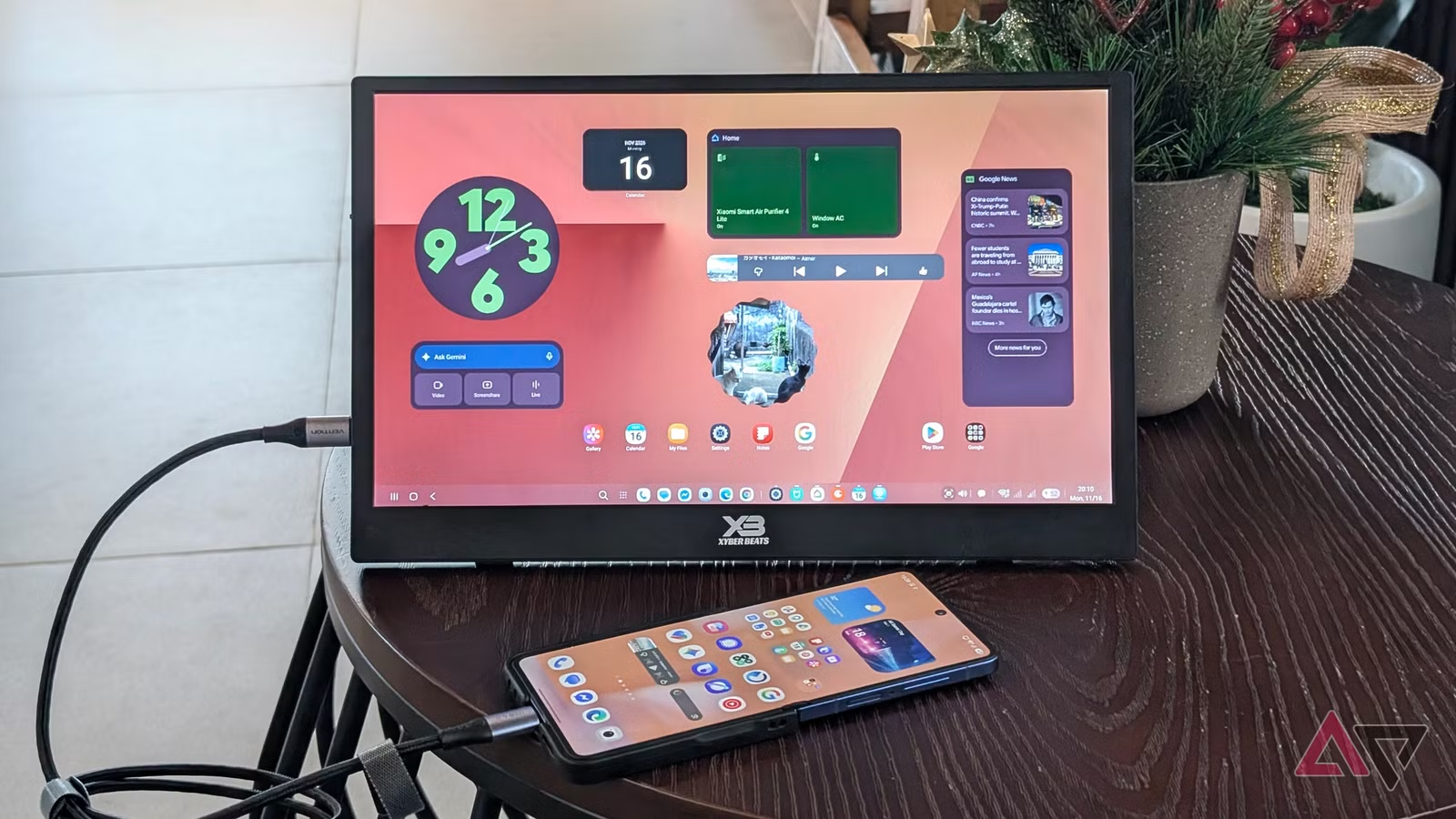
To connect everything, you’ll need a USB-C to HDMI or Type-C to Type-C cable to output video to a portable monitor. If your monitor supports a Type-C port for charging and display, you can use a USB-C hub to power your phone and supply the video.
In my case, I used a USB 4.0 Type-C cable to connect my Flip or Pixel and another USB cable to power the monitor.
But for displays that don’t ship with a USB-C port, you will have to power them using their own cord.
In this setup, I used the Galaxy Z Flip 7 more often through DeX, given the platform’s popularity and the fact that DeX is more mature than native Desktop Mode.
Though, again, you can use any Galaxy or Motorola phone that supports a desktop interface to run your DIY smart home display setup.
Keeping the external display awake at all times
A hidden toggle to bypass screen timeout
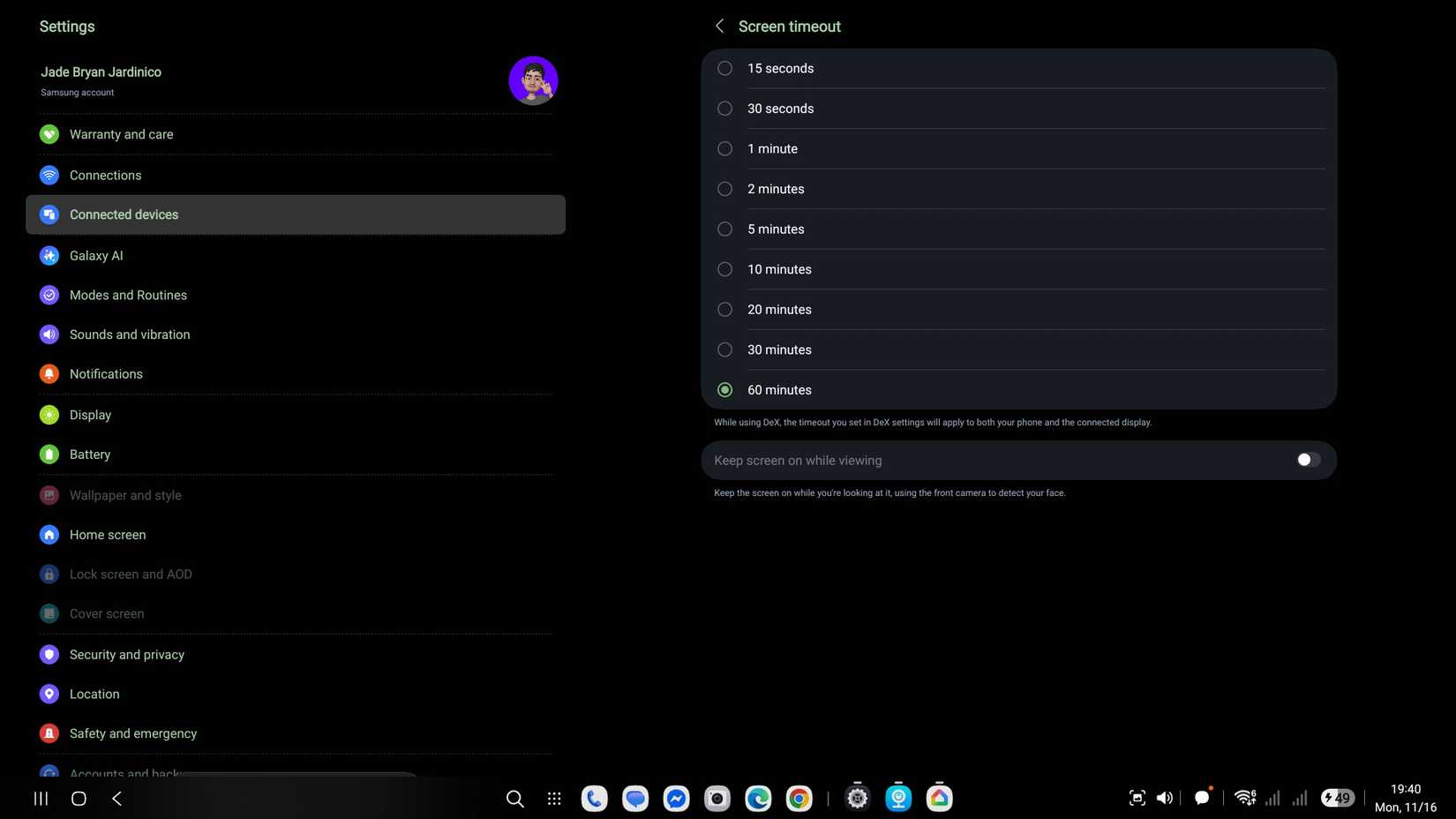
After I have my Galaxy phone connected, the first thing I check is the settings that control the screen timeout. This prevents the tablet from locking and keeps it awake.
In DeX and Desktop Mode, there’s no built-in way to easily keep my phone and the connected monitor awake, or prevent the panel from dimming and locking indefinitely.
The maximum native screen timeout is 60 minutes, and the minimum interval is 15 seconds.
Fortunately, there’s an extra toggle called Keep screen on while viewing. It uses the front-facing camera of your connected Galaxy device to monitor whether a user is actively looking at it.
However, there’s another catch: If you walk away or no user is detected, it falls back to the set screen timeout.
My workaround to keep the screen on indefinitely is to use a developer option that keeps your phone and the connected monitor active at all times.
To turn this on, go to Developer Options and look for the Stay awake toggle.
Still, it’s not strictly necessary to keep your screen running constantly, since you can remove the lock screen security on your phone to wake it quickly.
Alternatively, set a lock screen animation so that it keeps showing time, calendar, and weather widgets.
Customizing DeX into a smart screen
It’s now a hub for my smart home controls and weather
Android offers even better flexibility than a typical smart hub: customization.
With DeX or Desktop Mode, you can set up to four workspaces, each with a distinct set of apps.
For example, I have a dedicated desktop for streaming anime through Crunchyroll, and another with my smart home apps, including Google Home, V380 for security cameras, and Xiaomi Home.
I keep these utilities in a 2×1 layout, and I appreciate that DeX lets me resize each window freely.
You can arrange each desktop however you want, such as keeping one app full-screen or placing two apps side by side.
If you have a touchscreen monitor, you can tap the available buttons and shortcuts to navigate or toggle a specific accessory, like a light bulb, or an appliance, like an A/C and TV.
If not, your Galaxy phone can act as a touchpad, or you can invest in a $10 mouse that connects wirelessly or via cable.
But there’s a minor bottleneck to customization
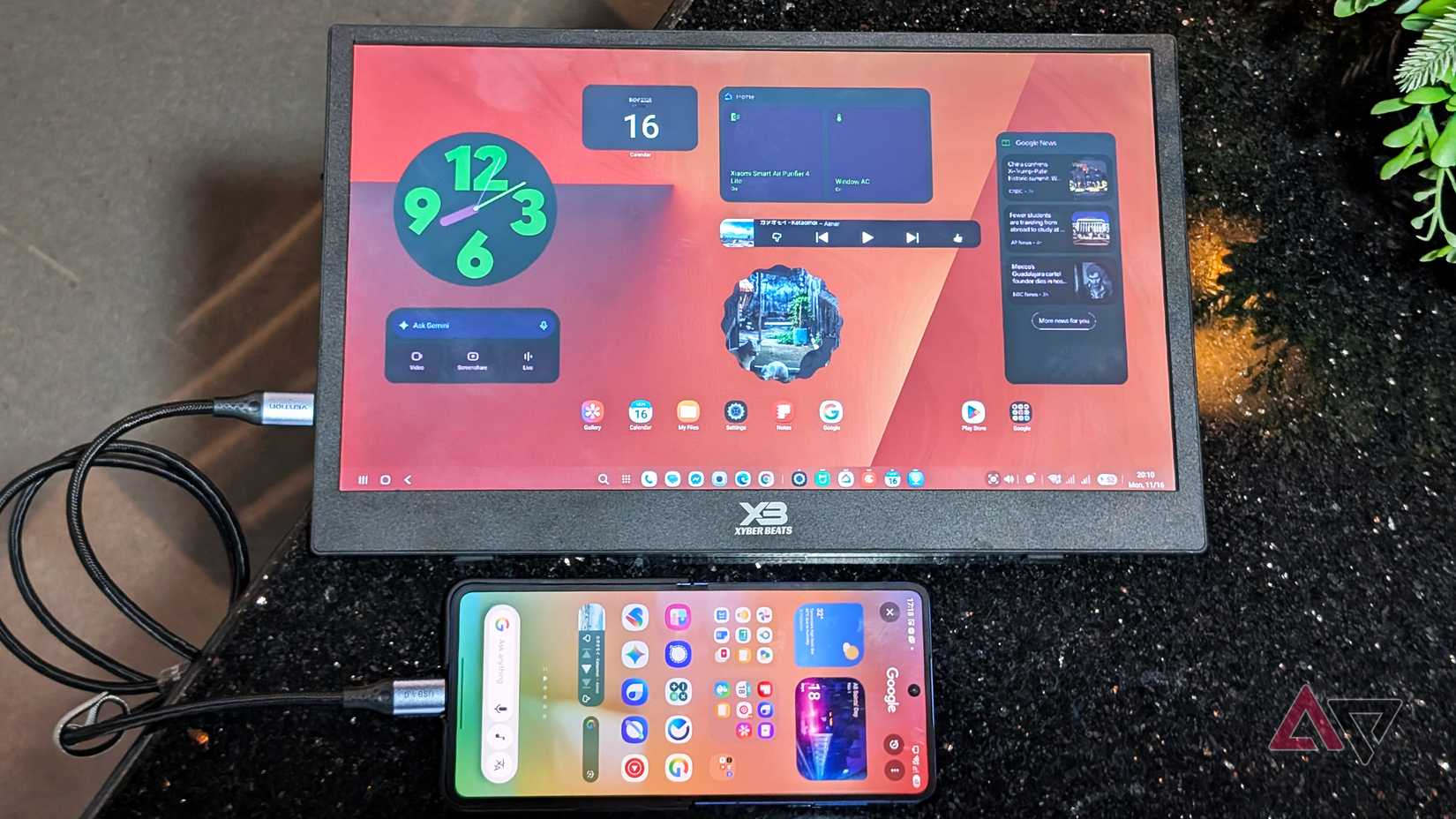
I also love that even within DeX, I can arrange my own set of widgets on the home screen.
This makes it feel closer to a real smart display, much like the Pixel Tablet.
I tested placing clock, calendar, Gemini, photo, News, and YouTube Music widgets on the canvas.
Although repositioning is rigid, I used the resize handles to nudge them into place on the grid. It took a few minutes to reach my target layout.
I wonder why Samsung or Google hasn’t added support for easily dragging and dropping home screen widgets with a mouse.
If you have a Galaxy tablet repurposed as a smart home hub, that wouldn’t be an issue.
Another quirk I noticed is that I can only set one customized home screen. That means the same collection of widgets appears across other desktops or workspaces, regardless of which apps are open.
That’s not a dealbreaker, though, as I can still squeeze in multiple widgets onto a single screen. Still, I wish there were support to customize each workspace independently.
I skipped buying a smart home display
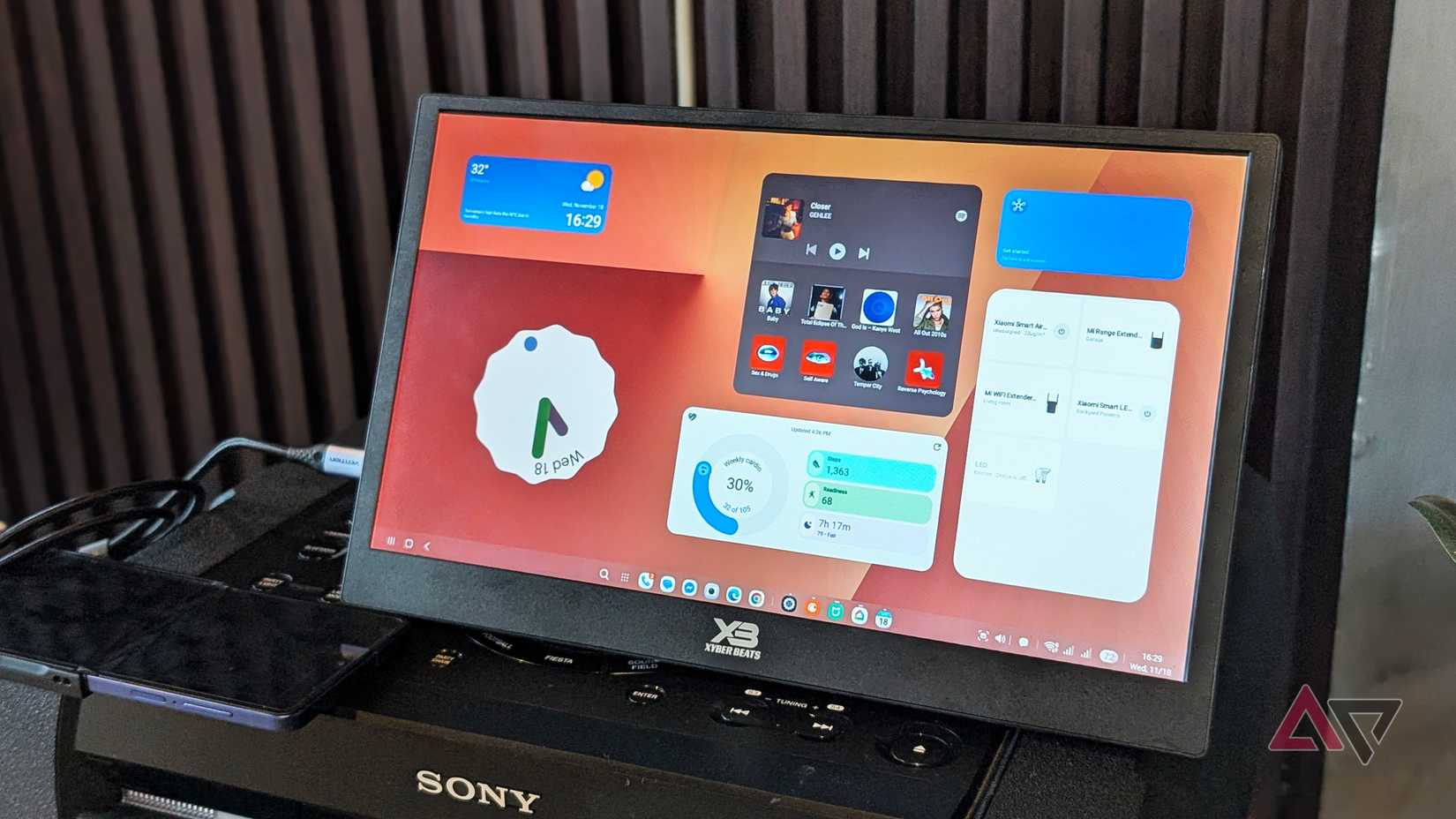
I didn’t expect to find this portable monitor setup more enjoyable than using it with DeX as a laptop alternative.
I’m currently loving this smart home display setup, which gives me easy access to information ranging from reminders, news, weather, and time while I’m relaxing in the living room.
Accessing smart home controls through Google Home, SmartThings, and Xiaomi Home is also quicker than hunting down and fetching my phone from another room.
It’s a proven way to transform your old Android phone into a capable smart home device without spending money on a new standalone tablet.