








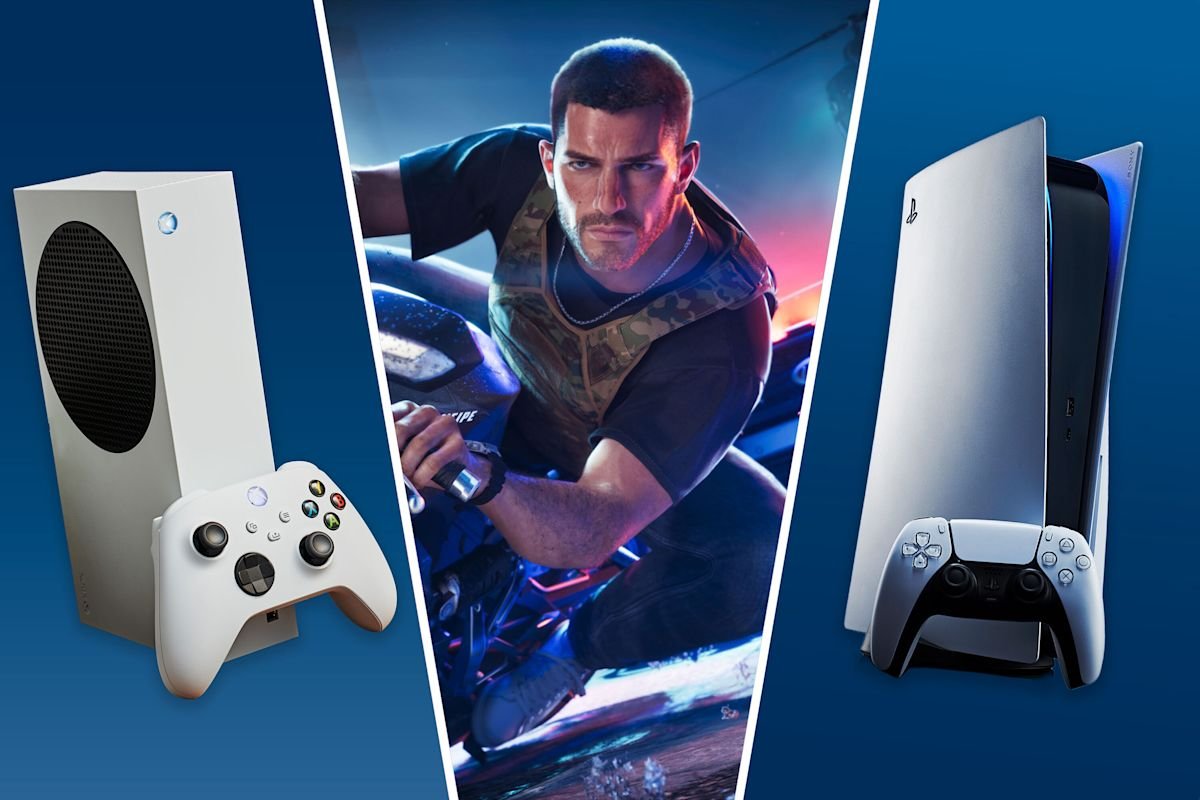
You’ll finally be able to play Grand Theft Auto VI on Thursday, and if you haven’t preloaded the game on your Xbox or PlayStation5 yet, there’s still time. But a heads-up: you’ll probably need to clear some space on your console. Rockstar Games confirmed that GTA 6 takes up to 212GB of storage space, depending on the device. And don’t worry: even if you clear space for GTA 6, you can still keep data from your older games if you want to.
If you have games on your PS5 or Xbox that you haven’t played in a while, it may make sense to consider uninstalling them to free up some disk space. You can also move them to external storage, essentially putting them on ice while that coveted console storage gets put to good use with GTA 6.
Finding out how much storage you have on your console is a good first step. To check on PS5, go to the home screen, select Settings and then Storage.
Advertisement
Advertisement
On Xbox, press the Xbox button on your controller, then select See All from the My Games and Apps menu. Choose Manage from the menu, then select Free Up Space. At this point on Xbox, you can check two tabs: Leftover Add-Ons are things like DLC packs and maps from games that have been uninstalled; those can be deleted. The Shrinkable Games tab will show titles that allow you to strip out things like texture packs that you don’t really need. These won’t affect gameplay, and can be discarded to reduce overall file size.
Now that you know how much space you have available, you can decide whether you want to delete games or move them to an external drive.
How to delete games and free up storage (but keep your save data)
You can delete a game from your PS5 from the Home screen or your game library. Click the options button on the controller, and then from the pop-up menu, select Delete. Then select OK to confirm.
To delete multiple games, go to Settings and choose Storage, and then Games and Apps. Check the box next to any of the games you want to delete, then select Delete from the menu on the right side of the screen.
Advertisement
Advertisement
Remember that save data and game data are stored separately on PS5, and deleting the saved data is a different action entirely. So even when you delete the game from your console, your saves will still be available. You can go to Settings, then Saved Data and choose Game/App Settings to check that your saves are still intact.
You can also delete any clips or screenshots you might have saved on your PS5 — and these can take up more space than you might realize. And unless you turn it off manually, PS5 will auto-save clips of game milestones, like when you win a trophy, for instance.
On Xbox consoles, game progress is backed up to the Xbox cloud, so you can safely remove a game from your device and not lose your saves. Go to Settings, then choose System and Storage. Select the Clear Local Saved Games option. You can delete any screen captures from your Xbox console as well. After rebooting, the storage cache will be refreshed.
How to move games to external storage
Rather than (or in addition to) uninstalling games, you can move them from your console’s built-in storage to external storage like portable solid state drive (SSD). For both Xbox and PS5 consoles, however, you’ll need to make sure to format the drive before you move the games over. Note that if there’s anything else on the drive, it will be erased when you format it for your console. And you’ll want to make sure there’s enough room on the external drive for the size of the game(s) you’re planning to move.
Advertisement
Advertisement
To prepare external storage for PS5, you’ll connect it to either the smaller USB-C or larger USB-A port. Go to Settings and then Storage. Select USB Extended Storage, then Format as USB Extended Storage from the menu. Don’t turn off the power or disconnect the drive while it’s formatting, as that can cause a range of problems including corrupted data and damage to your PS5 console.
Once the drive is formatted properly, you can move games you want to offload to it — but remember, you won’t be able to play games from an external storage drive. External storage like this is purely that — for storing games. If you want to play them again, you’ll need to move them back to your console’s built-in storage.
More advanced users may want to consider installing an SSD in the expansion slot on your PS5 console. This can seriously expand the amount of space you have on your console, but the process is a little more complicated than just plugging in a drive. Proceed with caution, and only if you have an extra M.2 SSD lying around (or a spare few hundred dollars to buy one).
To move games from an Xbox console to an external drive, plug the drive into a USB port on the console, and then select Format Storage Device at the prompt. Press the guide button on your controller, and then select My Games and Apps. Choose the game you want to transfer to the drive and press the menu button on your controller. Click on Manage Game and Move All. You’ll be able to watch the transfer in progress and once it’s completed the game will no longer be on your Xbox drive.
Other tips to make downloading GTA 6 as smooth as possible
Freeing up space on your console is priority number one, but there are other things you can do to make sure the GTA 6 download goes off without a hitch.
Advertisement
Advertisement
-
Avoid downloading or streaming other media while the install is in progress, to keep as much bandwidth available as possible.
-
Consider plugging your console into an Ethernet connection but plugging one end of an Ethernet cable into the console and the other into a LAN port on your router. That way you’ll override the Wi-Fi connection and have a more reliable, hardwired connection instead.
-
Let the game preload or download overnight when other activity on the server is usually less congested.
-
Use a mobile app to start the download remotely. On your Xbox console, once you’ve cleared enough space, enable remote features. From the Xbox mobile app on your phone, find GTA 6, then select Download to console. On PS5, pair the PlayStation mobile app on your phone with the console you’re using, choose GTA 6 and select Download to console.